Frequent Touchscreen Unresponsiveness or Missed Touches? A Complete Guide to Causes and Fixes
Have you ever experienced this while using your phone: you tap the screen but the app doesn’t respond, scrolling suddenly stutters or stops, or keystrokes are constantly missed while typing? These issues—unresponsive, delayed, or interrupted touch input—not only ruin your user experience but can sometimes hold you back from important tasks. This article provides a systematic breakdown of the common causes of touchscreen problems and offers a step‑by‑step troubleshooting guide, from the simplest checks to more advanced solutions.
1. Common Causes of Touchscreen Malfunctions
Touchscreen issues generally fall into three categories: external environmental factors, software/system problems, and hardware failures.
External Environmental Factors
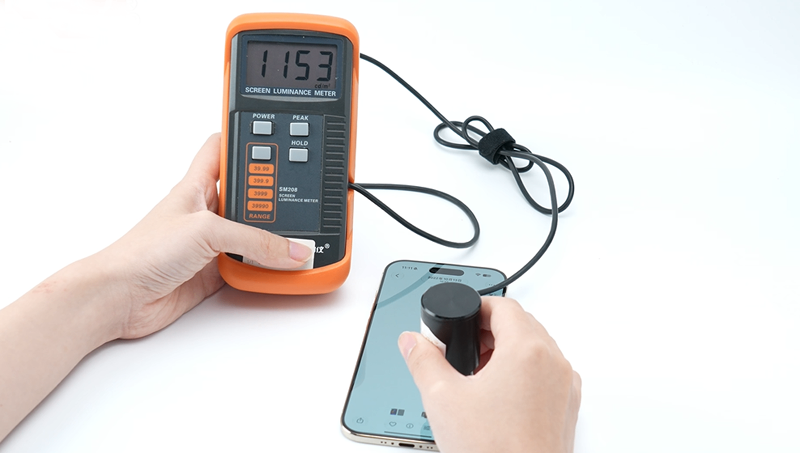
These are the most easily overlooked culprits. Fingerprints, grease, water spots, or dust on the screen can interfere with the capacitive touch signal. Low‑quality or overly thick screen protectors hinder touch transmission—especially tempered glass films with lifted edges or trapped bubbles, which often cause localised unresponsiveness. Using non‑original chargers can introduce voltage instability during charging, leading to ghost touches or missed inputs. Extreme temperatures also affect performance: in cold environments, the liquid‑crystal molecules respond more slowly, while in hot conditions the phone may activate thermal protection and throttle touch functionality. Static electricity is another enemy of capacitive screens—inferior protectors can generate static charges that may even damage the touchscreen’s internal capacitors.
Software and System Issues
System bugs, too many background apps consuming resources, or accumulated cache that slows down the system can all cause touch delay or failure. Some third‑party apps may conflict with the system and interfere with normal touch responses. Also, accidentally enabling accessibility features like “Magnification Gestures” can introduce noticeable touch latency.
Hardware Failures
These are the most serious. Dropping the phone or applying strong physical pressure can loosen the display flex cable or damage the touch controller IC. Prolonged heavy usage may overheat and age the touch chip. Such problems generally require professional repair.
2. Step‑by‑Step Troubleshooting and Solutions
When your screen becomes unresponsive or misses touches, follow this “outside‑in, software‑before‑hardware” sequence:
Step 1: Clean the screen and inspect external accessories.
Gently
wipe the screen with a microfiber cloth to remove fingerprints, oil,
and dust. Remove any protective case and peel off the screen protector,
then test touch responsiveness. If the problem disappears, the protector
or case was the culprit—replace it with an officially certified film or
a thin one no thicker than 0.2 mm. Also disconnect the charger to rule
out voltage interference.
Step 2: Restart your phone.
A
simple restart clears temporary caches and closes stuck background
processes, resolving most transient software glitches. If the screen is
completely unresponsive, try a forced restart:
For Huawei phones, press and hold the Power button for over 15 seconds.
For iPhone 8 and later, quickly press and release Volume Up, then Volume Down, then press and hold the Power button until the Apple logo appears.
Step 3: Check system settings.
Go to Settings > Accessibility > Touch
(or similar path depending on your device) and turn off “Ignore
repeated taps”; set tap duration and long‑press duration to “Short”. On
Samsung devices, enable “Touch sensitivity” under Settings > Display. Some Android phones offer a screen calibration tool—look for it under Settings > Display > Touchscreen Calibration and follow the on‑screen prompts.
Step 4: Update your system and apps.
Make
sure your phone’s operating system and all apps are updated to the
latest versions. Manufacturers often release patches that fix
touch‑related bugs.
Step 5: Test in Safe Mode.
Restart
your phone in Safe Mode (the method varies by brand). If touch works
normally in Safe Mode, a third‑party app is likely causing the
issue—uninstall recently added apps one by one until you find the
culprit.
Step 6: Seek professional repair.
If
none of the above resolves the problem, a hardware defect is probable.
Back up your data in advance and take your phone (along with proof of
purchase) to an authorised service centre for diagnosis and repair.
3. Daily Prevention Tips
Prevention is always better than cure. Incorporate these habits into your daily phone use:
Regularly clean the screen with a soft, lint‑free cloth.
Use official or certified chargers, cables, and screen protectors.
Avoid exposing your phone to extreme temperatures for extended periods.
Keep your system and apps updated to the latest stable versions.
These simple measures can significantly reduce the likelihood of touchscreen issues over time.